VOOZ ·
A practical setup check before a video chat
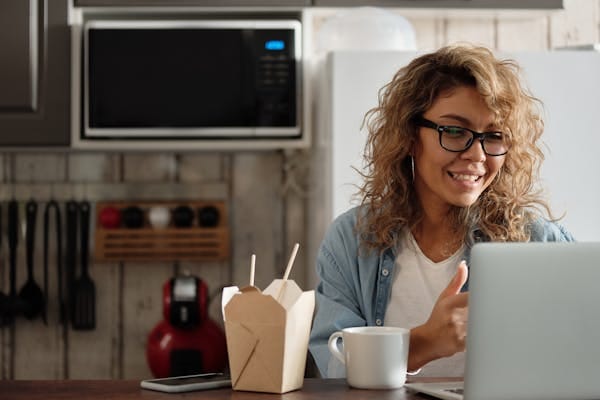
Before starting a video chat, check your connection, what the camera shows and what the microphone can hear. Make one change at a time so you can tell whether it helped. You do not need to buy new equipment to begin with these checks.
This is general preparation advice. It does not replace the instructions for the service, browser or device you use, and it cannot guarantee the quality of an internet connection.
Is your connection ready for a live conversation?
Start by pausing avoidable large downloads, uploads and other network-heavy activity on your device. If you are on Wi-Fi and the connection seems unstable, try a position closer to the router. Avoid changing several network settings at once.
Check whether ordinary websites load reliably, but remember that loading a page is not the same as carrying a live call. A connection test can help identify a problem; a single speed number does not guarantee a smooth conversation. The other person's connection and the service itself also matter.
If you can test with a consenting person you already know using a familiar calling tool, do that before joining a stranger-chat session. It gives you a chance to separate a local setup problem from a problem limited to one service.
Can the other person see you clearly?
Check your camera preview in a local camera application, or in the service if it provides a preview before connecting.
- Face a window or a soft light instead of placing a bright window behind you.
- Put the device somewhere stable and bring the camera near eye level if practical.
- Leave enough space around your face that normal movement does not take you out of frame.
- Remove documents, address labels, work screens and other private details from view.
- Check mirrors and reflective surfaces, not just the wall behind you.
The goal is a clear, comfortable picture rather than a studio setup. A small change in position can be more useful than adding a brighter light. See the privacy preparation guide for more about what a camera can reveal.
Can you hear and be heard comfortably?
Choose the microphone you intend to use and check whether your device has accidentally selected another connected input. If your headset has a physical mute switch, inspect that too. Start at a moderate listening volume.
A local recording test can help you hear background noise or a microphone that is too far away. Do not record another participant to test your setup without their agreement. Headphones may help when sound from your speakers is being picked up by the microphone, but a headset is not a requirement for every device or service.
Close the window or move away from a noisy appliance if it makes a meaningful difference. If a problem remains, note whether it affects the input, the output or both. “I can hear, but my microphone does not work” is more useful than “the audio is broken.”
What should you check before granting camera or microphone access?
Confirm the website address and the mode you selected. Read the permission prompt instead of allowing access by habit. If you want written conversation without camera exposure, return to the service's mode choices before proceeding.
Browsers and operating systems can each control camera and microphone access. Google's Chrome camera and microphone guidance explains site permissions, input selection and troubleshooting for that browser. In Chrome on a computer, open Settings → Privacy and security → Site settings, then choose Camera or Microphone. Check the selected device and the permission for the specific site. Your computer may also have its own permission setting. On a work-managed device, an administrator may control these choices. Use the corresponding official help for a different browser or device.
For Vooz, begin with the video-chat information and the current instructions shown in the product. Do not assume that allowing a permission is the same as starting, ending or recording a session.
For page size, keyboard access and a broader review of permissions before and after a chat, use the browser settings guide.
How do you restore camera or microphone access in mobile Chrome?
If you previously blocked access and now want to use that input, check the permission for the exact website. Camera and microphone access are separate choices. These are Chrome settings, not a test of whether Vooz supports your device.
Android
- In Chrome, open the three-dot menu → Settings → Site settings.
- Select Camera or Microphone.
- If the intended website appears under Blocked, select it and choose Allow.
Google's Android Chrome instructions explain these settings. If microphone access is disabled for Chrome at the device level, review Chrome's app permissions in Android too. A work or school administrator may control settings on a managed device.
iPhone or iPad
- Open the intended website in Chrome.
- If a camera or microphone icon appears beside the address, tap it and adjust that site's permission. Google says these icons appear only after you have changed the site's camera or microphone permissions.
- If Chrome's access is disabled on the device, open the iPhone or iPad Settings app and review Chrome's camera or microphone permission there. A device-level block can prevent the website permission prompt from appearing.
See Google's iPhone and iPad Chrome instructions. Return to the site and review the requested input before continuing. If the problem remains, use the checks below rather than granting unrelated permissions.
What if the preparation does not fix the problem?
Use the symptom to choose the next check, rather than changing everything at once:
What you notice: You can hear, but your microphone is not working
First check: Check the headset mute switch, selected microphone and microphone permission.
What that helps you establish: Whether the intended input is selected and allowed.
What you notice: The camera image is missing
First check: Check the selected camera and its browser and device permissions.
What that helps you establish: Whether the intended camera is available to the browser.
What you notice: The picture and sound break up
First check: Pause avoidable transfers and test your local connection again.
What that helps you establish: Whether the symptom changes with less local network activity.
These checks narrow the problem; they do not prove that the cause is on your device.
End the attempted session and write down the device, browser, selected mode and exact error message. Check the browser or device's official troubleshooting instructions, then use Vooz's help information for a Vooz-specific issue. Avoid repeatedly granting broader permissions or buying equipment before identifying the cause.
A technical fault and another person's behavior are different problems. For unwanted conduct, leave the interaction and consult the service's safety and reporting information.